How to collect data from a website
Multiparser collects data from websites into a spreadsheet. You show the extension once, right on the site's page, what to collect: the list of items, the fields you need, the pages of the list. The collecting runs on our server, and then you download a ready CSV or JSON file.
- Open the website and click the extension's icon in the browser toolbar — the Multiparser panel appears.
- Go through the tabs from left to right: Pages, Categories (if needed), Cards, Fields, Pagination, Settings.
- Press “Start”. The job runs on the server; you may close the tab.
- When the job reaches 100% and shows “Done!”, press “Download”.
The settings for one website are a project, kept in your browser. A project can have several start pages, for example different catalogue categories. The one you are working with is chosen in the “Start page” list at the top of the panel. All the tabs belong to it.
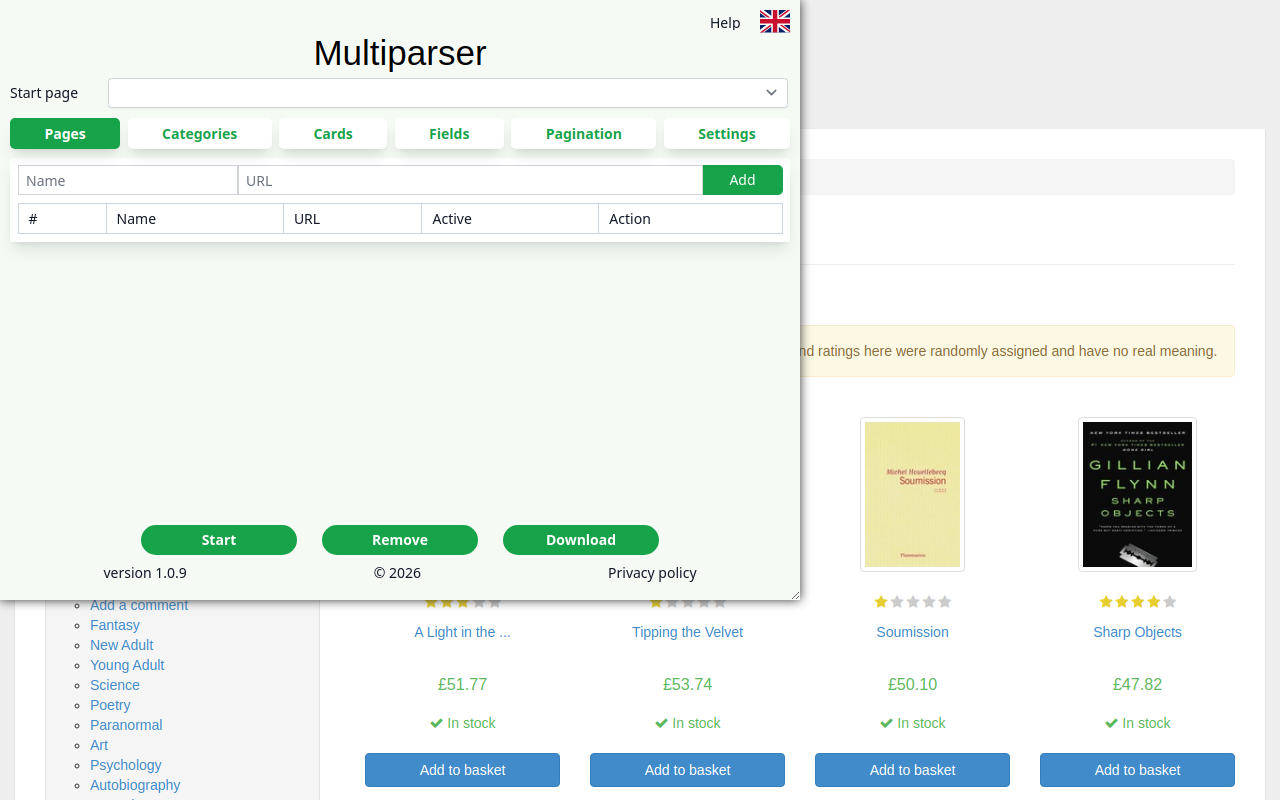
1Pages
This is where you set the page the collecting starts from. Usually it is a catalogue category, search results or a list of listings.
- Open that page of the website.
- Click in the “URL” box: the address of the current page goes in.
- Type a “Name”, for example “Books”. It is only for you.
- Press “Add”. The page becomes active and appears in the “Start page” list.
The “Del” button in the table removes a page.
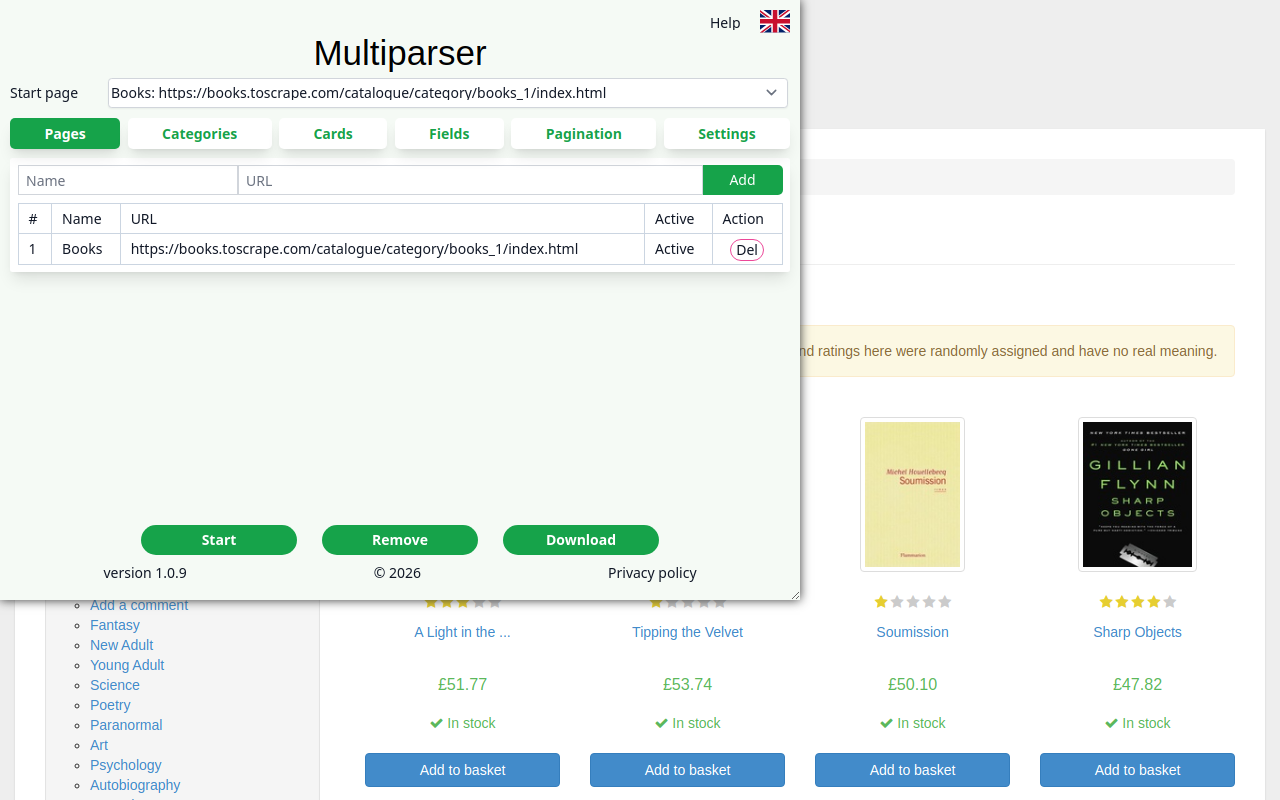
2Categories
You need this tab only to go through all subcategories of the start page. For example, from the “Books” page collect every section: “Mystery”, “Fantasy” and so on. Skip this tab only if the start page itself already has cards (a list of products, listings) and you need exactly them.
- Tick “Use the category structure”.
- On the “Level 1” tab press Ctrl + click on the link of any subcategory.
- The extension finds the whole block of such links and shows how many there are.
The parser takes only the subcategories that lie “inside” the start page's address. It does not take the links of the site's general menu.
If the subcategories have subcategories of their own, open any of them with a plain click and repeat the choice on the “Level 2” tab, and on “Level 3” if needed. The “Remove” button clears the choice.
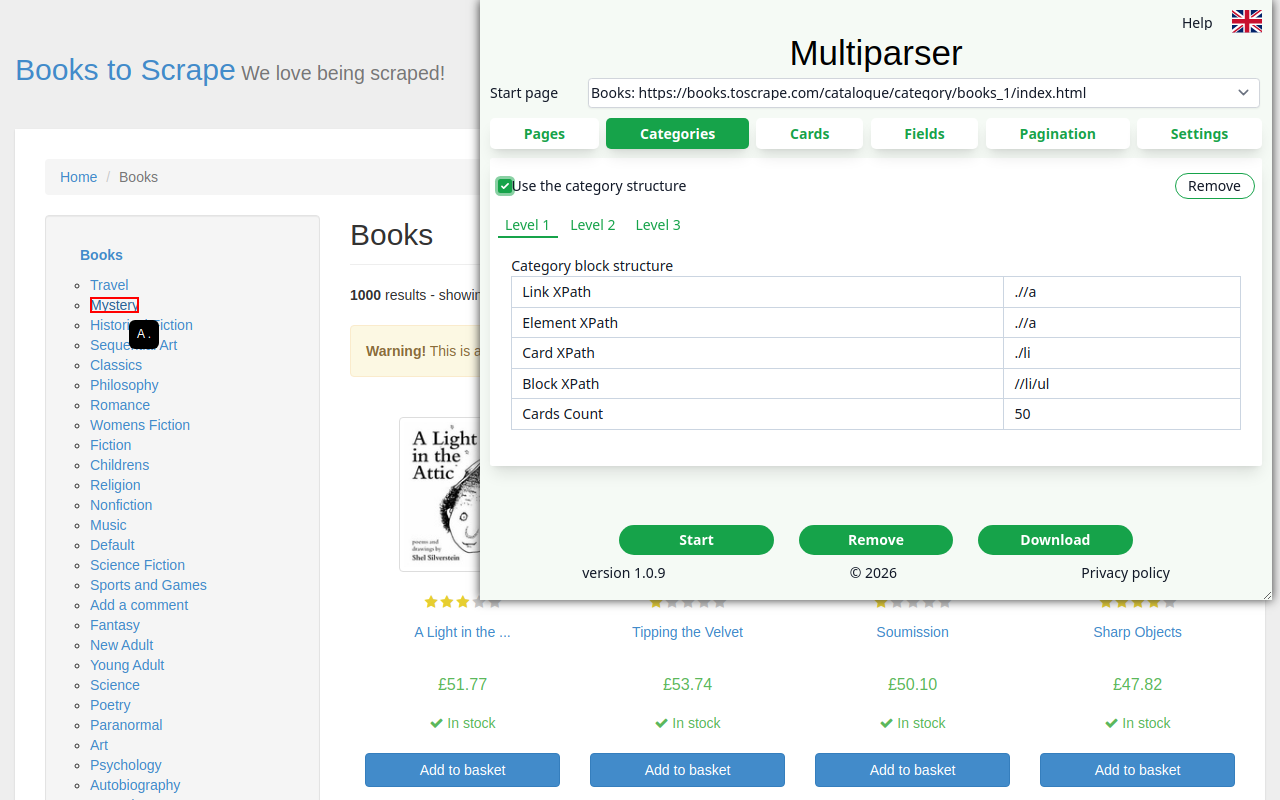
3Cards
A card is one item of the list: a product, a listing, an article, a hotel. Cards become the rows of the spreadsheet.
- Open a page with the list.
- Press Ctrl + click on the link of any card, usually its title or picture.
- The extension finds all such cards on the page and shows their number.
“Follow links”
| Ticked | The parser opens the page of every card and takes the fields from there. You get more (descriptions, specifications), but it takes longer. |
|---|---|
| Not ticked | The fields are read right from the cards in the list. This is much faster and fits when everything you need is visible in the list: title, price, rating. |
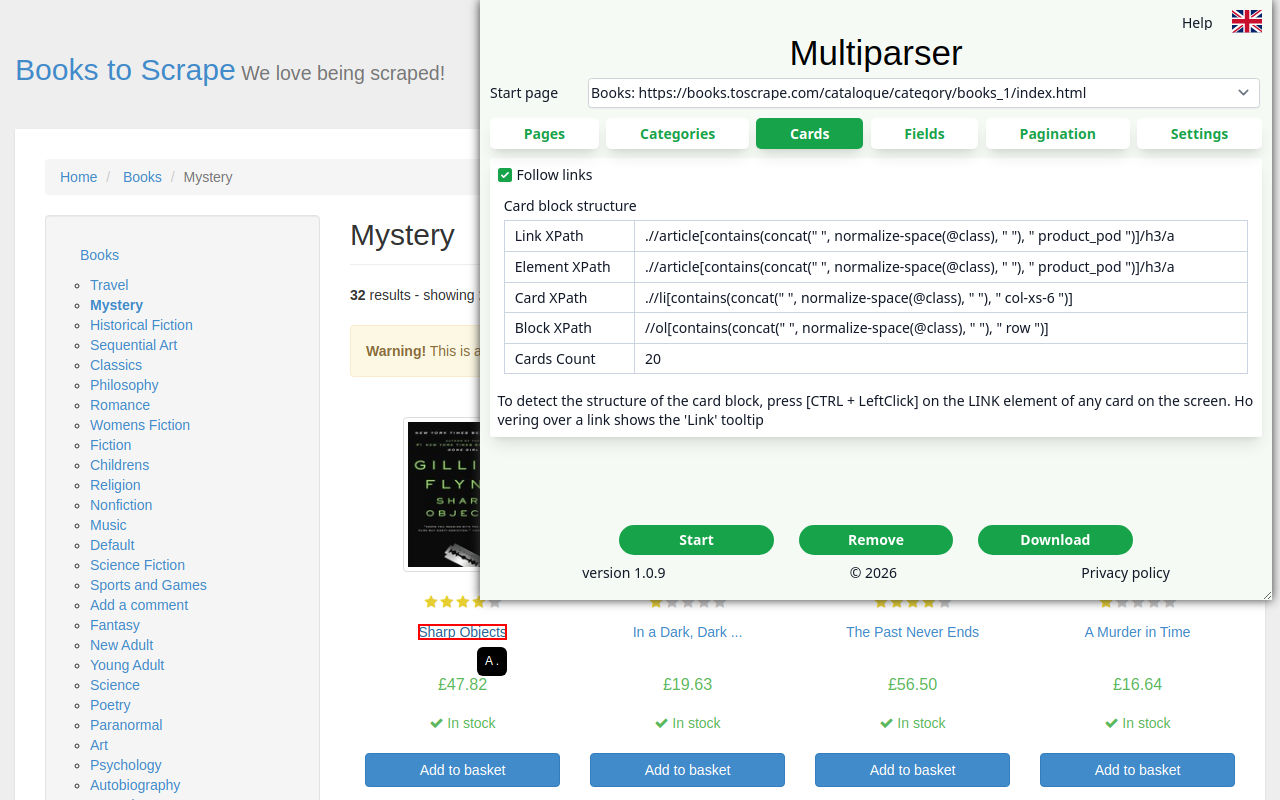
4Fields
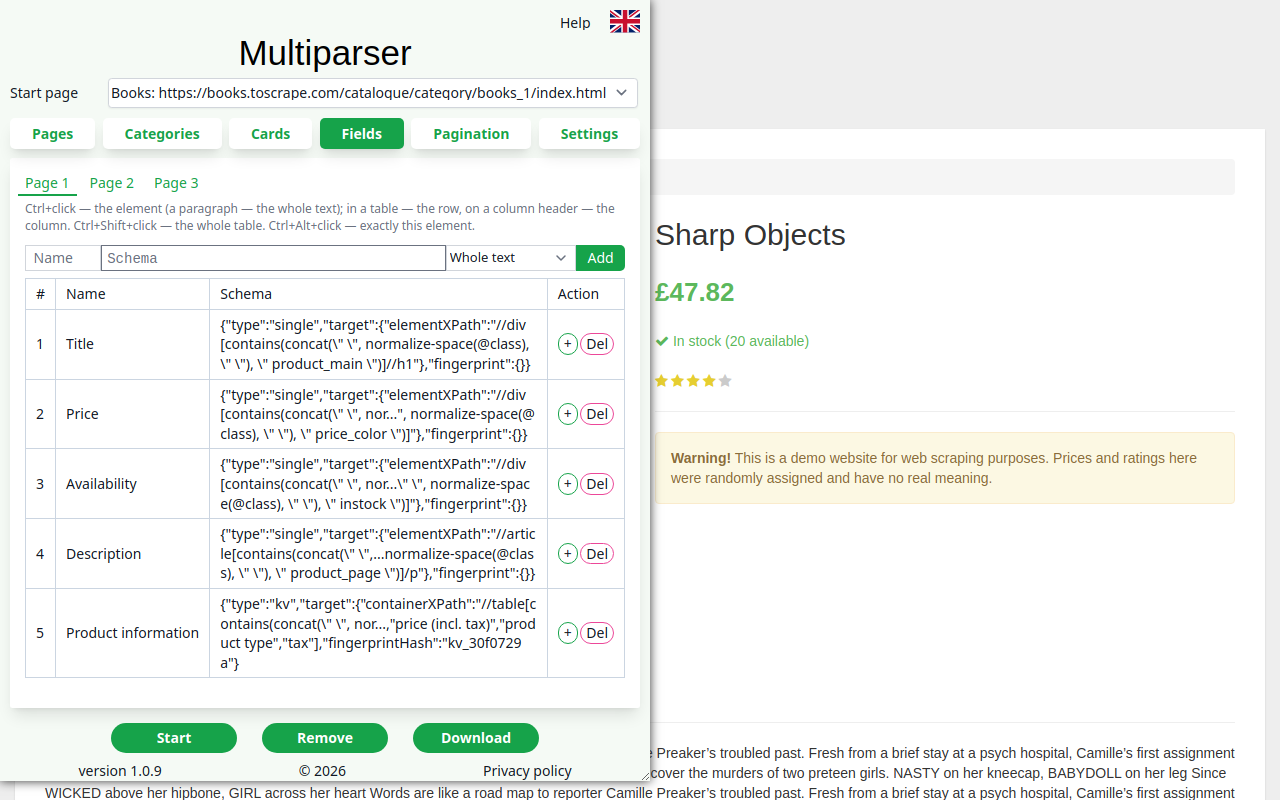
Fields are the columns of the future spreadsheet: title, price, availability, description and so on.
Where to choose them:
- if “Follow links” is ticked on the Cards tab, open the page of any card with a plain click and choose the fields there;
- if it is not ticked, choose the fields right in a card of the list.
For every field:
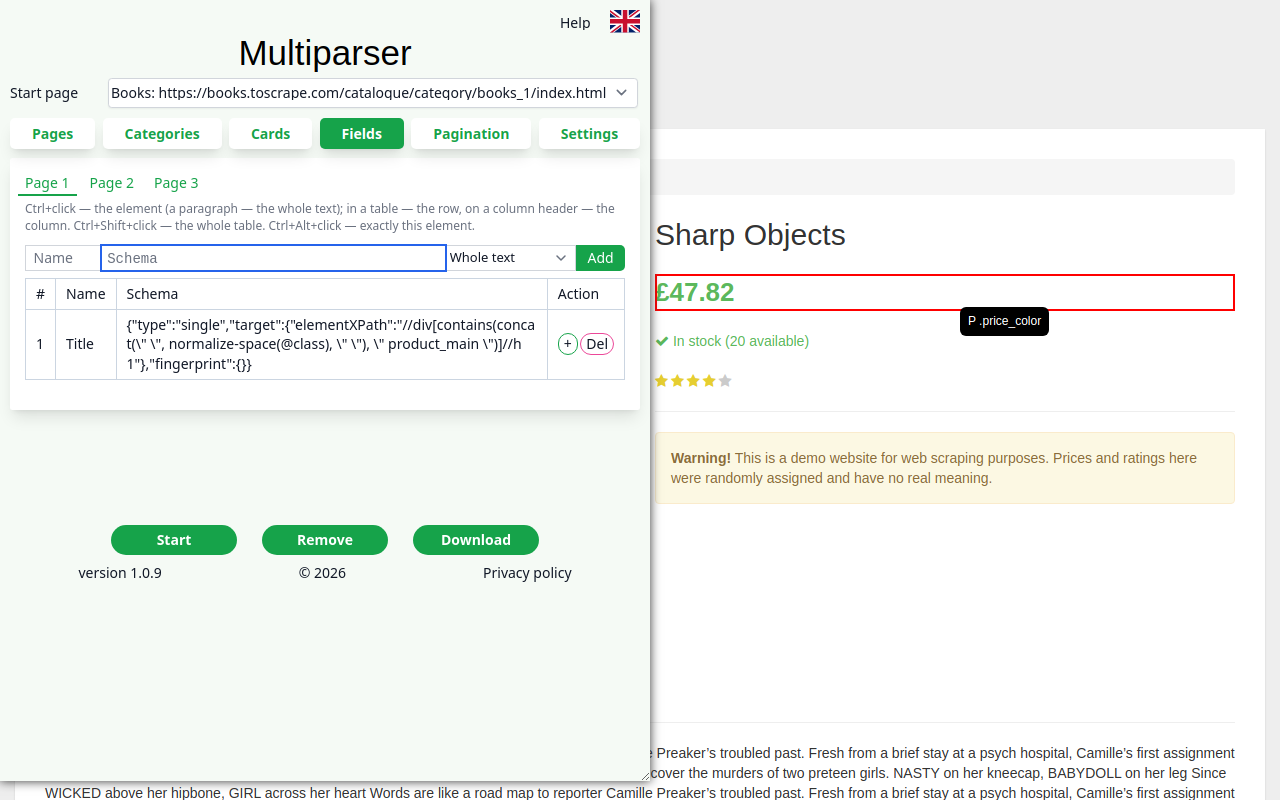
- click in the “Schema” box (the wide box right of “Name”);
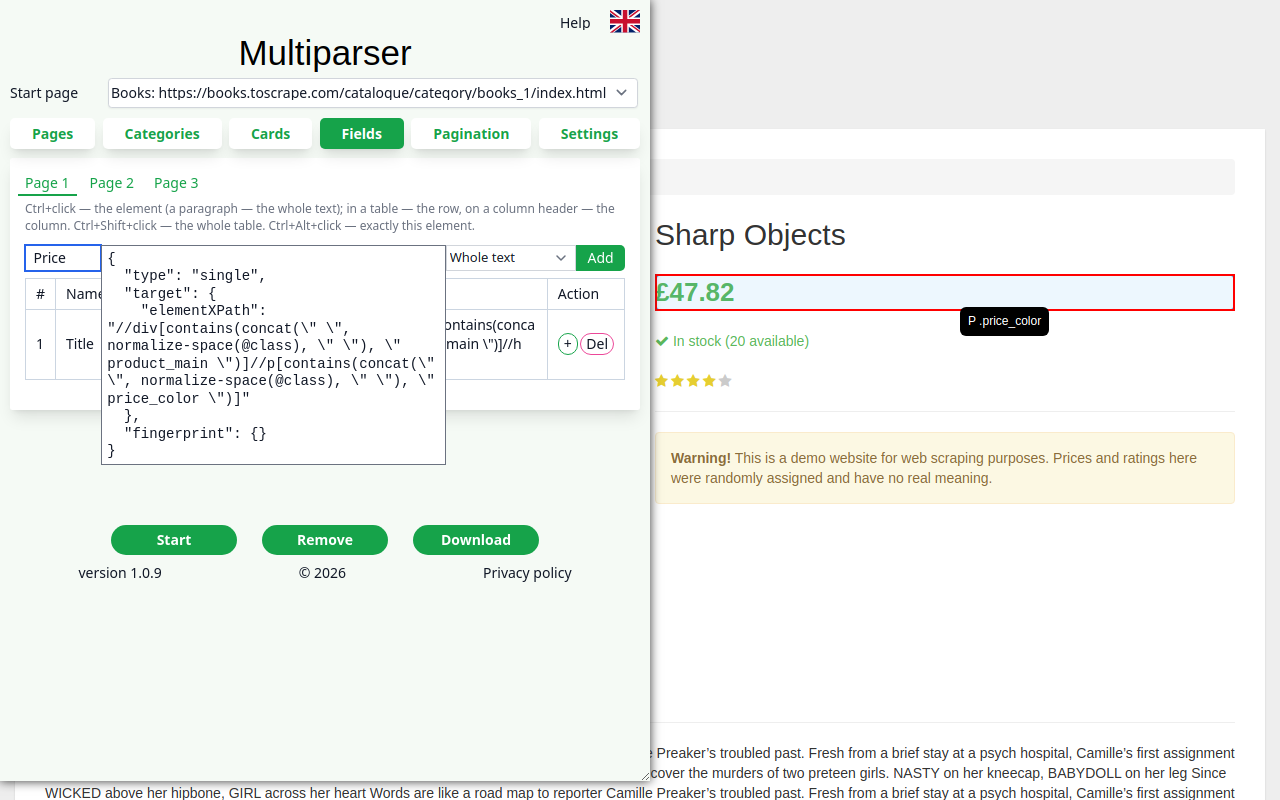
- press Ctrl + click on the element on the page — its description appears in “Schema”;
- type a “Name” — the column will be called so;
- press “Add”.
Which click chooses what
| Ctrl + click | The element. For a paragraph, the whole text block is chosen. In a table, the row is chosen, and a click on a column header chooses the column. |
|---|---|
| Ctrl + Shift + click | The whole table (the “Whole table” button does the same). |
| Ctrl + Alt + click | Exactly this element, not widened to its block. |
If Ctrl + Shift switches your keyboard layout, use the right Ctrl and Shift, or choose the table with the “Whole table” button. The button appears right of the “Schema” box once something in a table is chosen: first press Ctrl + click on any row of the table, then “Whole table” (the button turns blue). Pressing it again clears the whole-table choice.
Part of the text
The list next to “Add” sets what to take from the element:
- “Whole text” — all the element's text;
- “Amount only” and “Without amount” — for texts like “$1,299 for the whole period”: the first gives the number, the second the caption;
- “List” — all elements of one kind joined with commas, for example sizes “40, 41, 42” or an article's tags.
When the field is empty on some cards
The same field may look different on different cards, for example a discounted price. Open a card where the field was not found and add it again with the same name. The “+” button in the table row does the same. This adds an alternative, and the parser takes the one that finds a value.
Page 2 and Page 3
If part of the data on a card's page opens with a button (for example, “Specifications”):
- go to the “Page 2” tab;
- click in “Page link” and press Ctrl + click on that button;
- open the block and choose the fields inside it.
How fields look in the file
- An amount with a currency (“£47.82”, “$1,234.50”) is written as a number. The currency goes to the
next column
field_currency. - A “key — value” table (two columns: name and value) goes into one cell as “key: value” lines:
UPC: a897fe39b1053632
Product Type: Books
Availability: In stock (19 available)
- A table with several columns (for example, a size chart) goes into one cell row by row: the first row
is the headers, cells are separated by “ | ”. You can take the whole table, some rows or some columns:
Size | Chest | Waist
44 | 88 | 70
46 | 92 | 74
- In JSON, tables stay tables: a “key — value” table is an object, a table with several columns is a list of rows.
- A date and time from the markup (for example, “16 hours ago”) is written as the exact time in your computer's time zone.
5Pagination
Here you tell the parser how to get to the next cards of the list. Choose one of four ways and press “Save”.
Page range
Fits when the pages of the list have their own addresses (?page=2, /page-2.html).
- Press Ctrl + click on the “2” link in the page numbers. The address pattern is filled in:
{}stands in place of the number. - Set the first and the last page.
- Check the sample address of page 2 under the boxes.
If the pages run out before the last one, the parser stops by itself.
If Ctrl+click did not work:
- open pages 2 and 3 with a plain click, paste their addresses into the boxes below and press “Build the pattern”;
- or type the pattern by hand.
“Step” is needed when the address holds not the page number but the position of the first item: 30, 60, 90…
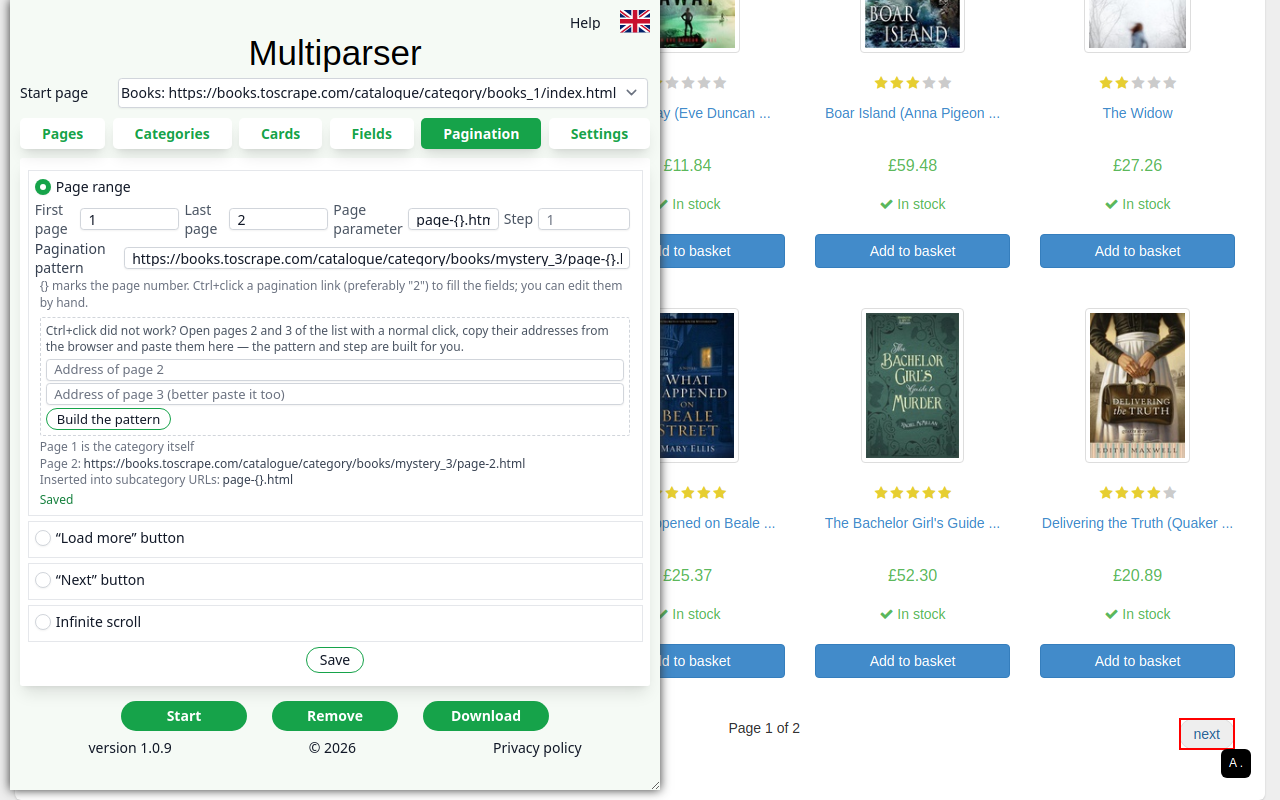
page-{}.html, pages 1–2.“Load more” button
Press Ctrl + click on the button. The parser presses it while new cards appear and the limit is not reached.
“Next” button
For sites whose pages have no simple addresses. Press Ctrl + click on “›” or “Next”. You can also click the number “2” — then page N presses “N+1”. Limit the number of pages with “Pages, at most”.
Infinite scroll
Nothing to choose. The parser scrolls the page while cards load. If the list ends before the limit is reached, it follows the “next page” link, if there is one.
6Settings
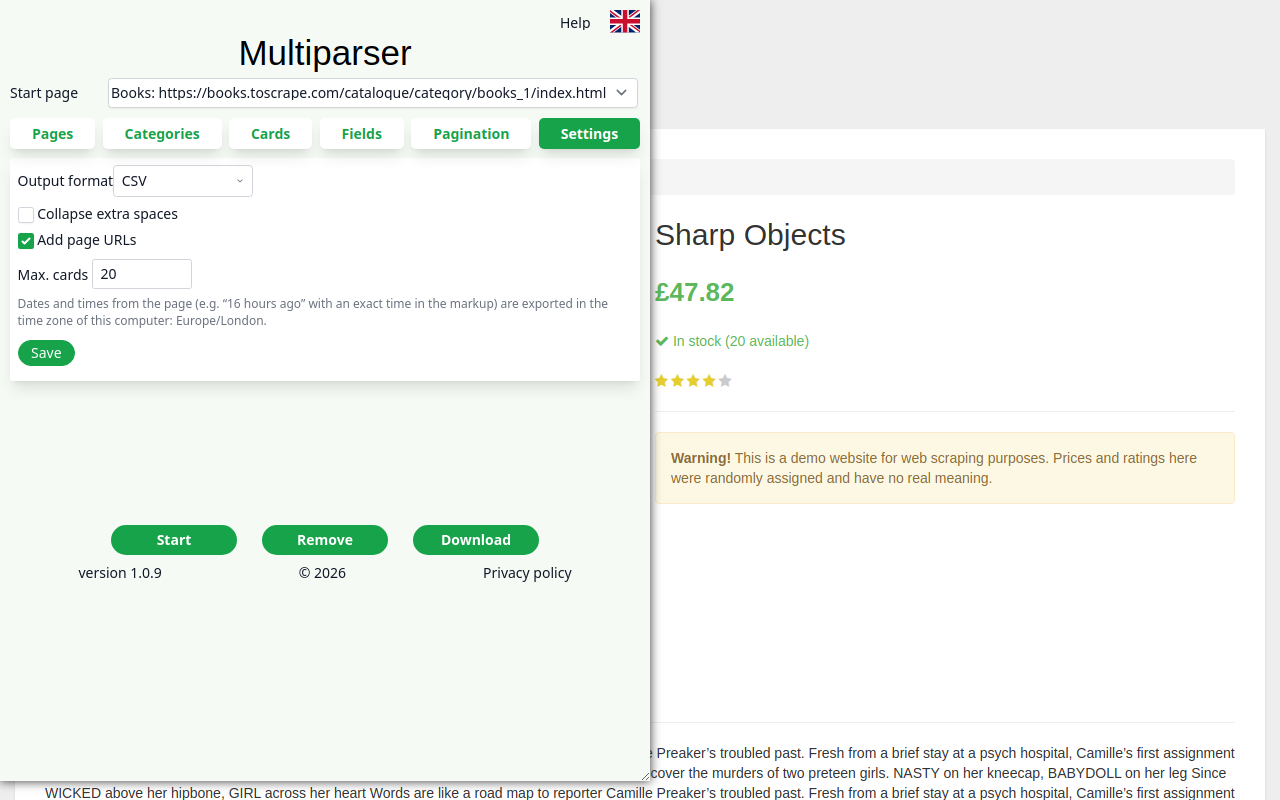
| Output format | CSV — a table for Excel and Google Sheets. JSON — for programs; tables stay tables in it. |
|---|---|
| Collapse extra spaces | Several spaces and line breaks inside a text become one space. |
| Add page URLs | A page_url column with the card's address. |
| Max. cards | How many cards to collect. 0 means no limit, but not more than your level allows (see below). |
Press “Save”.
Running and the result
Press “Start”. The job goes to the server, and a small box appears under the buttons showing what the parser is doing and how many percent are done. First it collects links, then it processes the cards, then it prepares the file. You may close the tab: the job keeps running on the server, and you will see its progress again when you open the panel on this site.
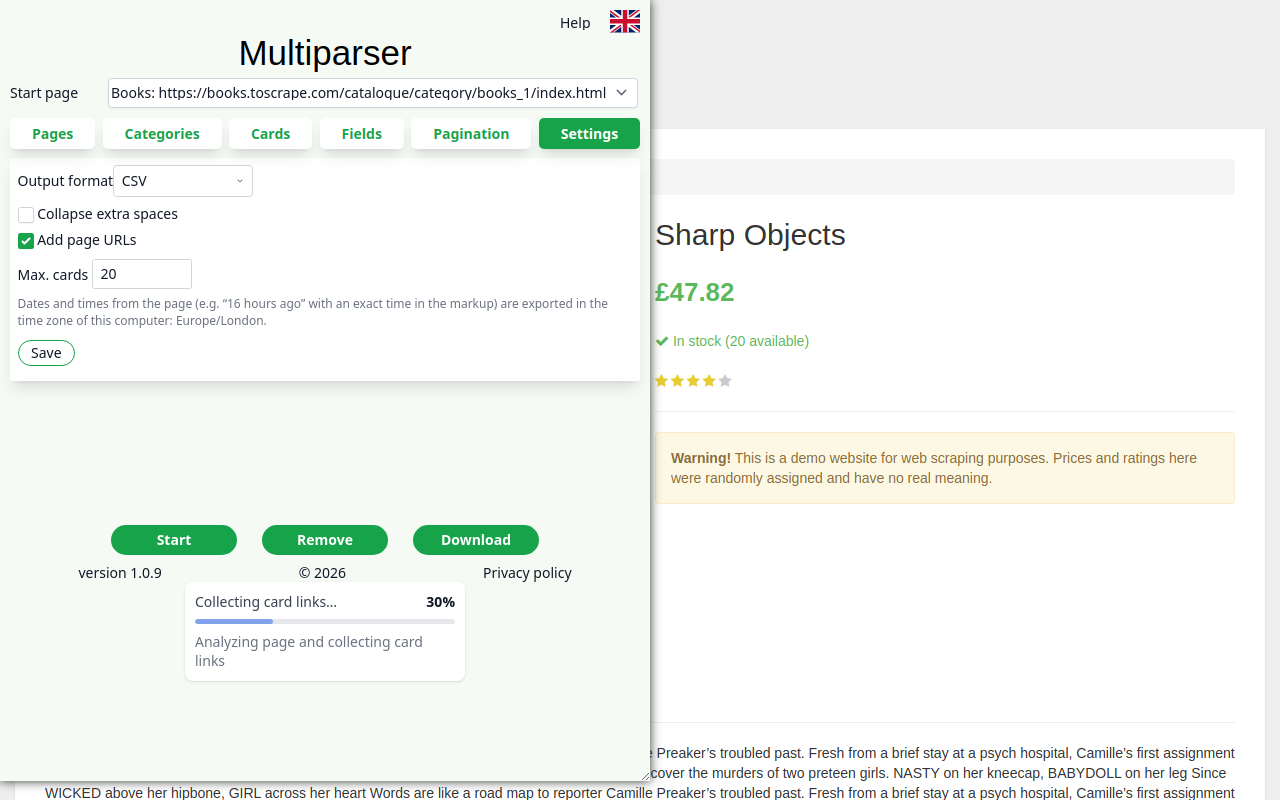
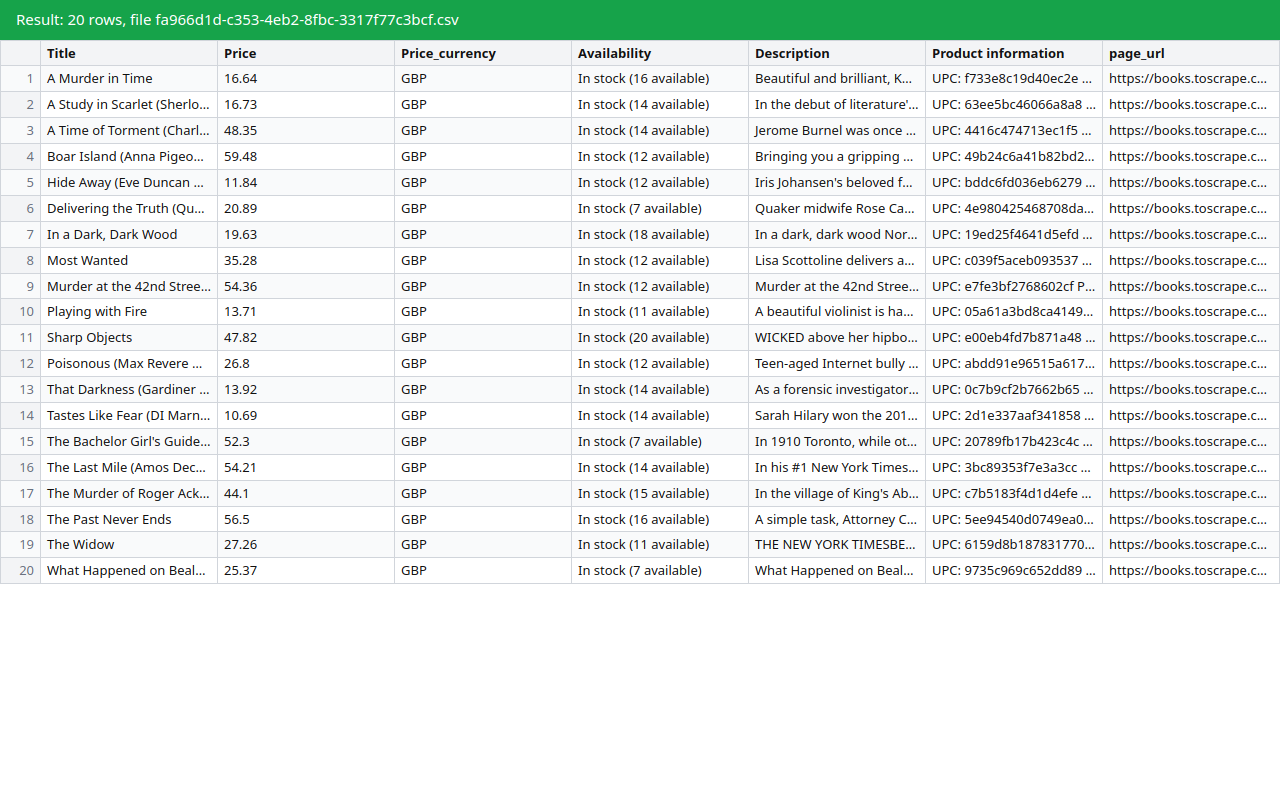
When the box shows “Done! File is ready” and 100%, press “Download”. You get a zip archive with the result
file. If some cards could not be collected, the archive also has a …_failed.csv file with
their addresses and the reason.
The file is kept for 3 days, then it is deleted. The “Remove” button removes this site's project from the browser.
Limits without registration
Need more, or regular collecting? Write to si2pars@gmail.com.
FAQ
“The site's pages could not be opened” or “The site is currently limiting access”
The site does not let automatic collecting in for now. Try running the job later.
“The parser found the site's bot protection and switched to a different browser mode”
Just run the job again: it goes in the new mode. This happens once per site.
“This site is not supported yet”
The site has especially strong protection against automatic collecting, and we cannot pass it yet.
“No product card links were found”
The site has most likely changed its layout. Open the Cards tab and Ctrl+click a card link again. Do the same for subcategories on the Categories tab.
A column has empty values
The field looks different on some cards. Add an alternative for the field, as described in Fields.
Fewer cards than expected
Check the last page on the Pagination tab and “Max. cards” in Settings. Without registration a run collects at most 100 cards.
Why it takes long
When following links, the parser opens every card separately, as a person would. Without following, when the fields are taken right from the list, it is much faster.